
Managing your attention at work can be a full-time job in and of itself, but it doesn’t have to be. With a bit more control over your availability and faster, more convenient ways to access the information you need, it becomes easier to focus in Slack. To that end, here are just a few of the improvements we’ve recently made.
Set and forget your status in Slack
Letting teammates know when you’re available—and when you’re not—can go a long way toward cutting down on untimely messages. To make it easier, you can now specify exactly how long you’d like your status to display in Slack. This means you can share what you’re up to with teammates, without having to remember to take down your status afterward.
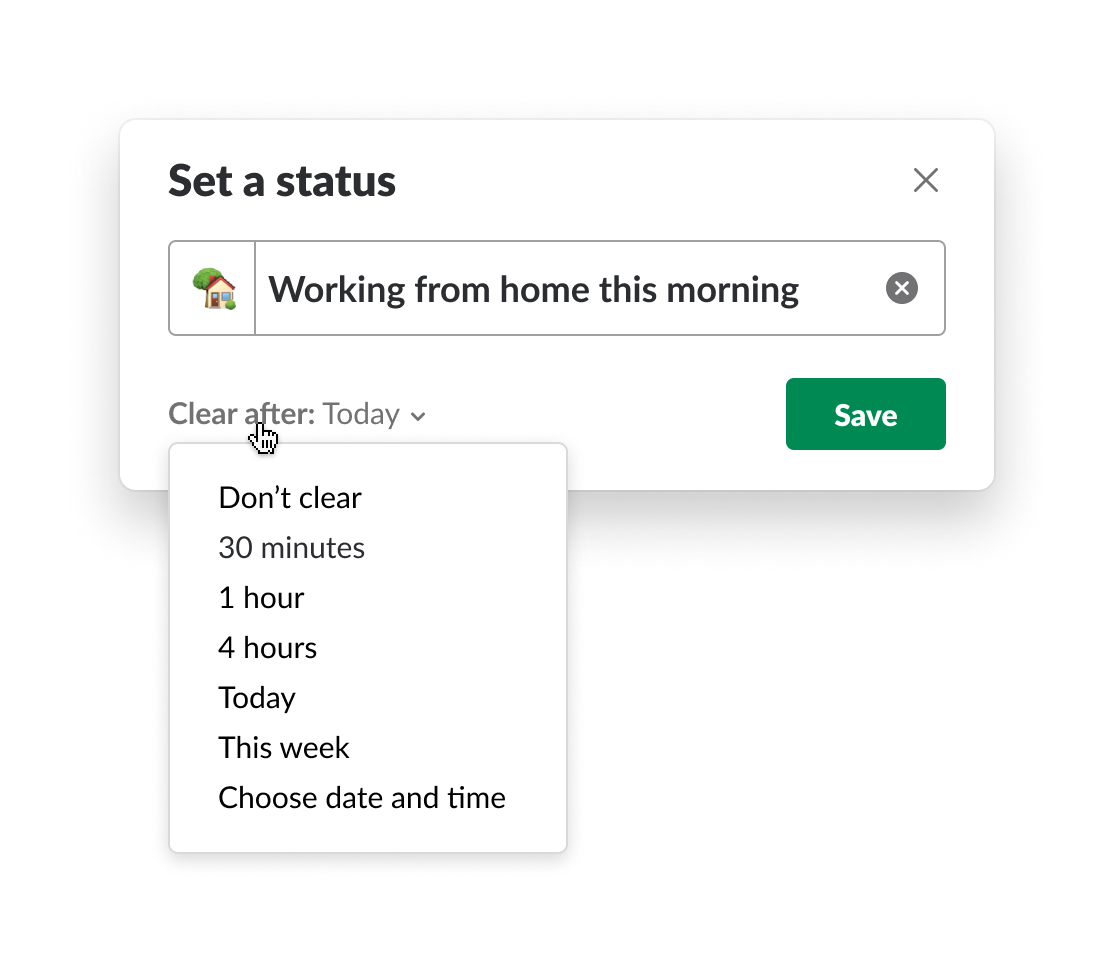
Tip: Be sure to include when you’ll be back, so teammates know when to expect to hear from you.
Resume notifications only when you’re ready
Recent improvements to Do Not Disturb, a nifty way of pausing notifications in Slack, allow you to specify the exact time and date you’d like notifications to start back up. Whether you’re carving out focus time or detaching for the upcoming holidays, you can do so uninterrupted.

Never miss a mobile notification
On the other hand, if you’d like to dial up the visibility of notifications, you can now get Slack notifications on your phone even when you have the mobile app open. Whether you reply directly from the notification banner or swipe it away for later, you don’t need to worry about messages gone unseen.

Instantly access any channel in any workspace on mobile
If you use Slack on an Enterprise Grid plan, chances are you work in channels across multiple workspaces. We’ve now brought the Quick Switcher to mobile, allowing you to quickly find any channel in your organization—regardless of which workspace you have open—and instantly jump in.

Upload custom emoji without 😅
Between cropping and resizing, uploading that oh-so-perfect image as a Slack emoji can sometimes require a bit of Photoshop gymnastics. To make that easier, any custom emoji uploaded to Slack will now be automatically resized, so you can spend less time setting them up and more time using them.
Bring OneDrive files to Slack
Users of Microsoft OneDrive are now able to import OneDrive files into Slack in a few simple steps. Simply hit the + icon in Slack to the left of the message composition field, select OneDrive, and choose the file you’d like to bring into the channel or direct message. OneDrive files imported to Slack are automatically indexed and searchable. Visit the Slack App Directory to install the OneDrive integration.

You can keep up with all of Slack’s new features, big and small, by visiting our changelog. Have ideas for more improvements we can make? Many features just like these come directly from customer feedback. Drop us a note or tweet us at @Slackhq to share yours.
 훌륭해요!
훌륭해요!
피드백을 주셔서 감사합니다.
알겠습니다!
피드백을 주셔서 감사합니다.
죄송합니다. 문제가 발생했습니다. 나중에 다시 시도해주세요.